
5.2 KiB
Tempus Usage Guide
Table of Contents
Prerequisites
Important Notice: This app is a Subsonic-compatible client and does not provide any music content itself. To use this application, you must have:
- An active Subsonic API server (or compatible service) already set up
- Valid login credentials for your Subsonic server
- Music content uploaded and organized on your server
Verified backends
This app works with any service that implements the Subsonic API, including:
- LMS - Lightweight Music Server - personal fave and my backend
- Navidrome
- Gonic
- Ampache
- NextCloud Music
Getting Started
Installation
- Download the APK from the Releases section
- Enable "Install from unknown sources" in your Android settings
- Install the application
First Launch
- Open the application
- You will be prompted to configure your server connection
- Grant necessary permissions for media playback and background operation
Server Configuration
Initial Setup
IN PROGRESS
- Enter your server URL (e.g.,
https://your-subsonic-server.com) - Provide your username and password
- Test the connection to ensure proper configuration
Advanced Settings
TODO
Main Features
Library View
Multi-library
Tempus handles multi-library setups gracefully. They are displayed as Library folders.
However, if you want to limit or change libraries you could use a workaround, if your server supports it.
You can create multiple users , one for each library, and save each of them in Tempus app.
Now Playing Screen
On the main player control screen, tapping on the artwork will reveal a small collection of 4 buttons/icons.
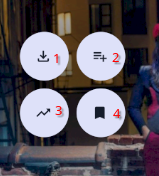
marked the icons with numbers for clarity
- Downloads the track (there is a notification if the android screen but not a pop toast currently )
- Adds track to playlist - pops up playlist dialog.
- Adds tracks to the queue via instant mix function
- TBD: what is the instant mix function?
- Uses getSimilarSongs of OpenSubsonic API. Which tracks to be mixed depends on the server implementation. For example, Navidrome gets 15 similar artists from LastFM, then 20 top songs from each.
- Saves play queue (if the feature is enabled in the settings)
- if the setting is not enabled, it toggles a view of the lyrics if available (slides to the right)
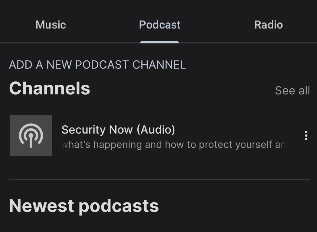
Podcasts
If your server supports it - add a podcast rss feed
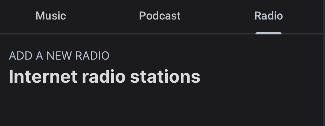
Radio Stations
If your server supports it - add a internet radio station feed
Navigation
Bottom Navigation Bar
IN PROGRESS
- Home: Recently played and server recommendations
- Library: Your server's complete music collection
- Download: Locally downloaded files from server
Playback Controls
Streaming Controls
TODO
Advanced Controls
TODO
Favorites
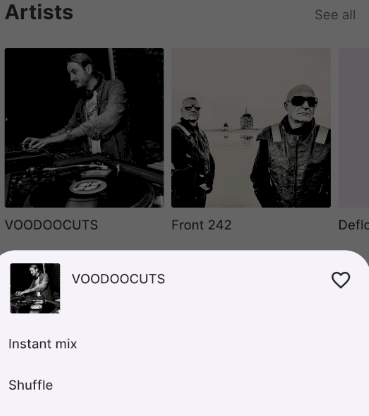
Favorites (aka heart aka star) to albums and artists
- Long pressing on an album gives you access to heart/unheart an album
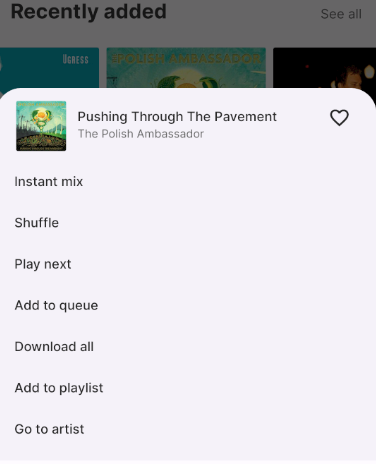
- Long pressing on an artist cover gets you the same access to to heart/unheart an album
Playlist Management
Server Playlists
TODO
Creating Playlists
TODO
Settings
Android Auto
Enabling on your head unit
- You have to enable Android Auto developer options, which are different from actual Android dev options. Then you have to enable "Unknown sources" in Android Auto, otherwise the app won't appear as it isn't downloaded from Play Store. (screenshots needed)
Server Settings
IN PROGRESS
- Manage multiple server connections
- Configure sync intervals
- Set data usage limits for streaming
Audio Settings
IN PROGRESS
- Streaming quality settings
- Offline caching preferences
Appearance
TODO
Troubleshooting
Connection Issues
TODO
Common Issues
TODO
Support
For additional help:
- Question? Start a Discussion
- Open an issue if you don't find a discussion solving your issue.
- Consult your Subsonic server's documentation
Note: This app requires a pre-existing Subsonic-compatible server with music content.