
1.9 KiB
1.9 KiB
🔗 Testing: Nextcloud Bookmarks Android App testing Guide
Prerequisites
- You should have nextcloud instances access
- NextCloud Bookmarks version 3.2.1 should be installed.
Login to Bookmark App
- Open the Android App "Nextcloud Bookmarks"
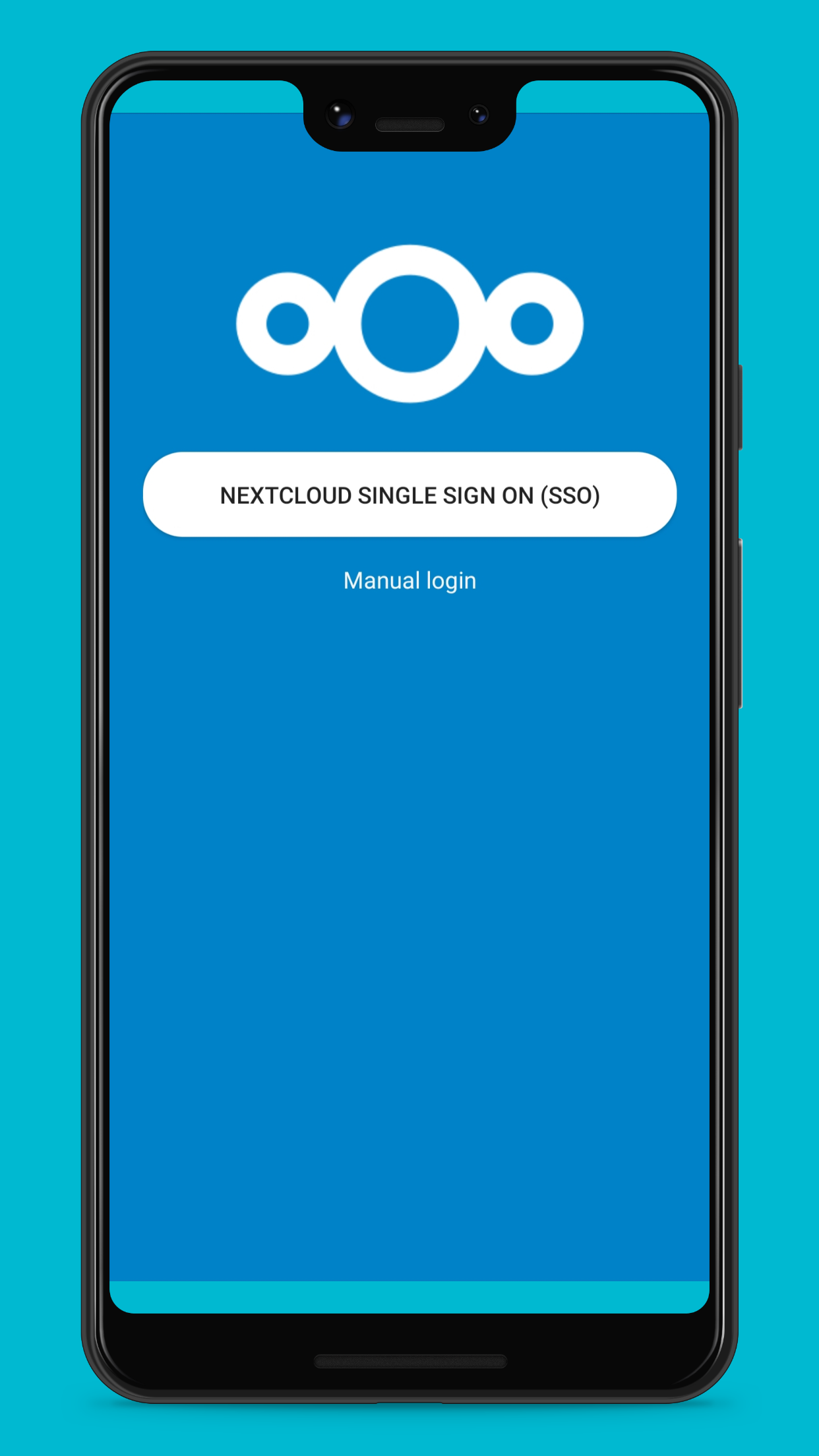
- Step 1: Click on Nextcloud Singn on (SSO).
- Step 2: Register the Nextcoud app for sso:
- Enter the "server address" in the field. Eg: https://us.cloudamo.com/
- Enter the Username in the user name field. eg. email id(biswajitxxxxxxxx@nextcloud.com)
- Enter the credentials Password field.
- Finally click on SIGN IN button.
- Once added select the account to continue.
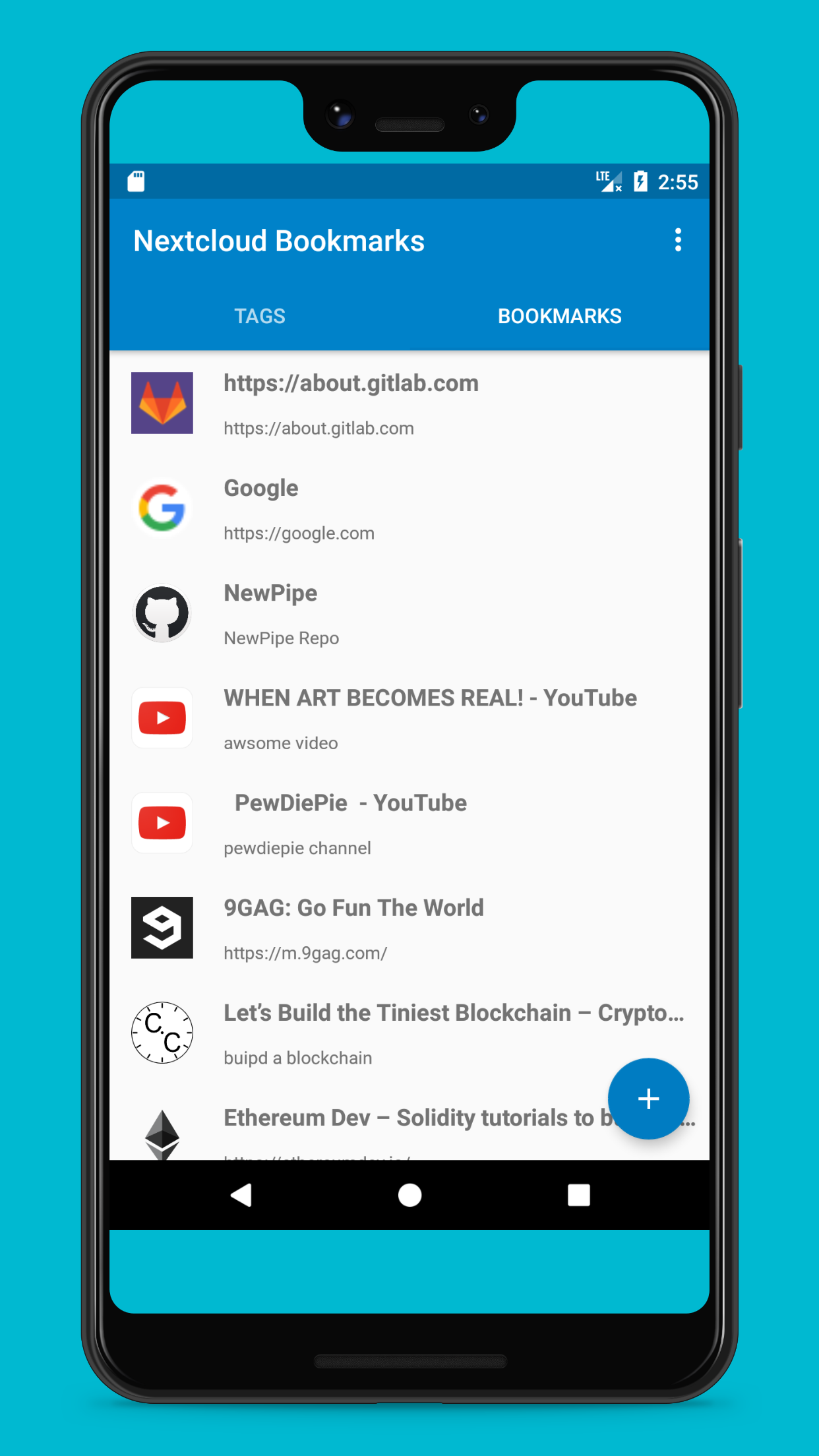
- Step 3: It will open the BOOKMARKS screen
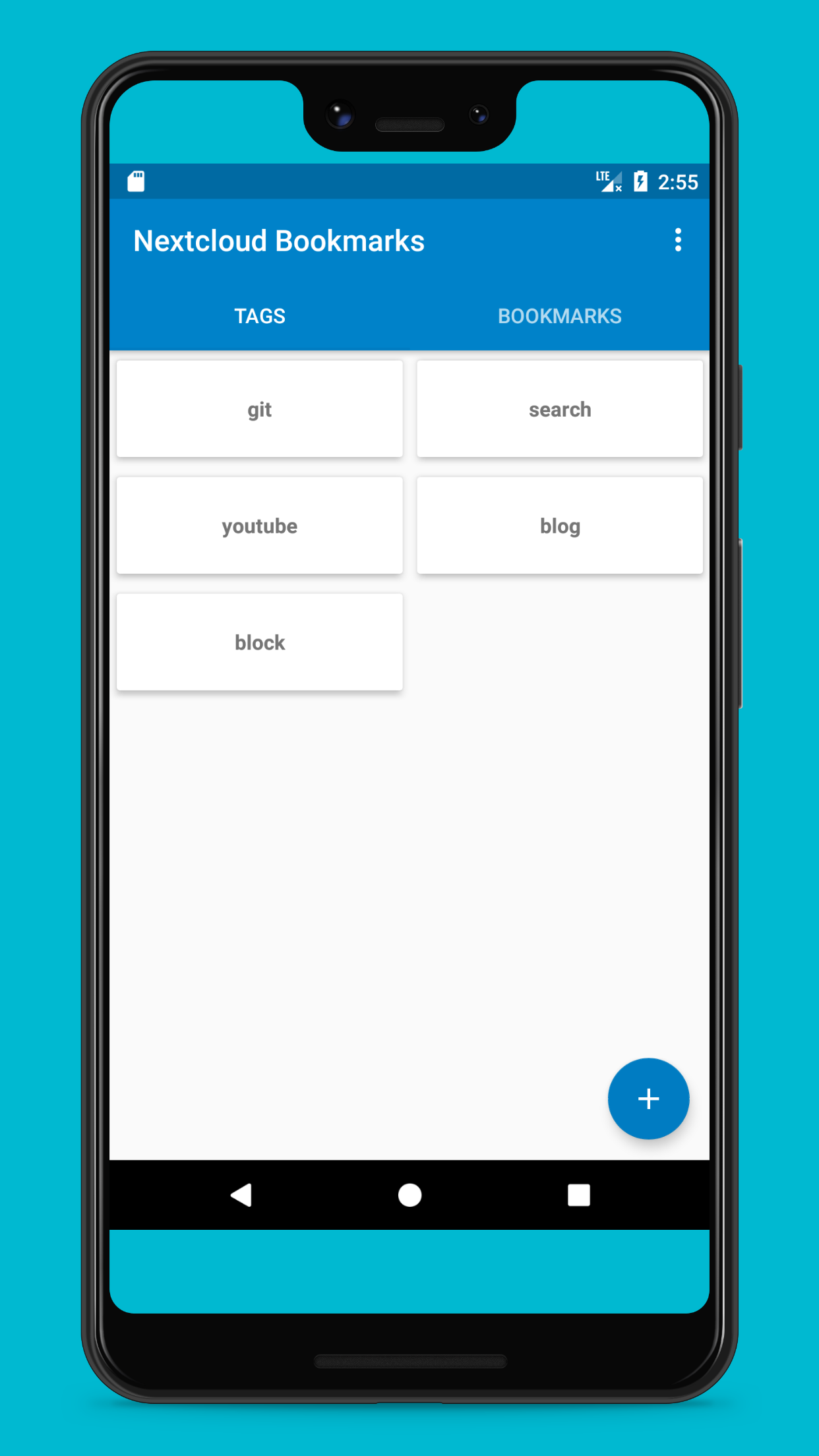
- Step 4: Click on the TAGS tab to open TAGS screen.
| Step 1 SSO Login | Step 2 Select account | Step 3 Bookmarks screen | Step 4 Tags Screen |
|---|---|---|---|
 |
 |
 |
 |
ADD New BookMark
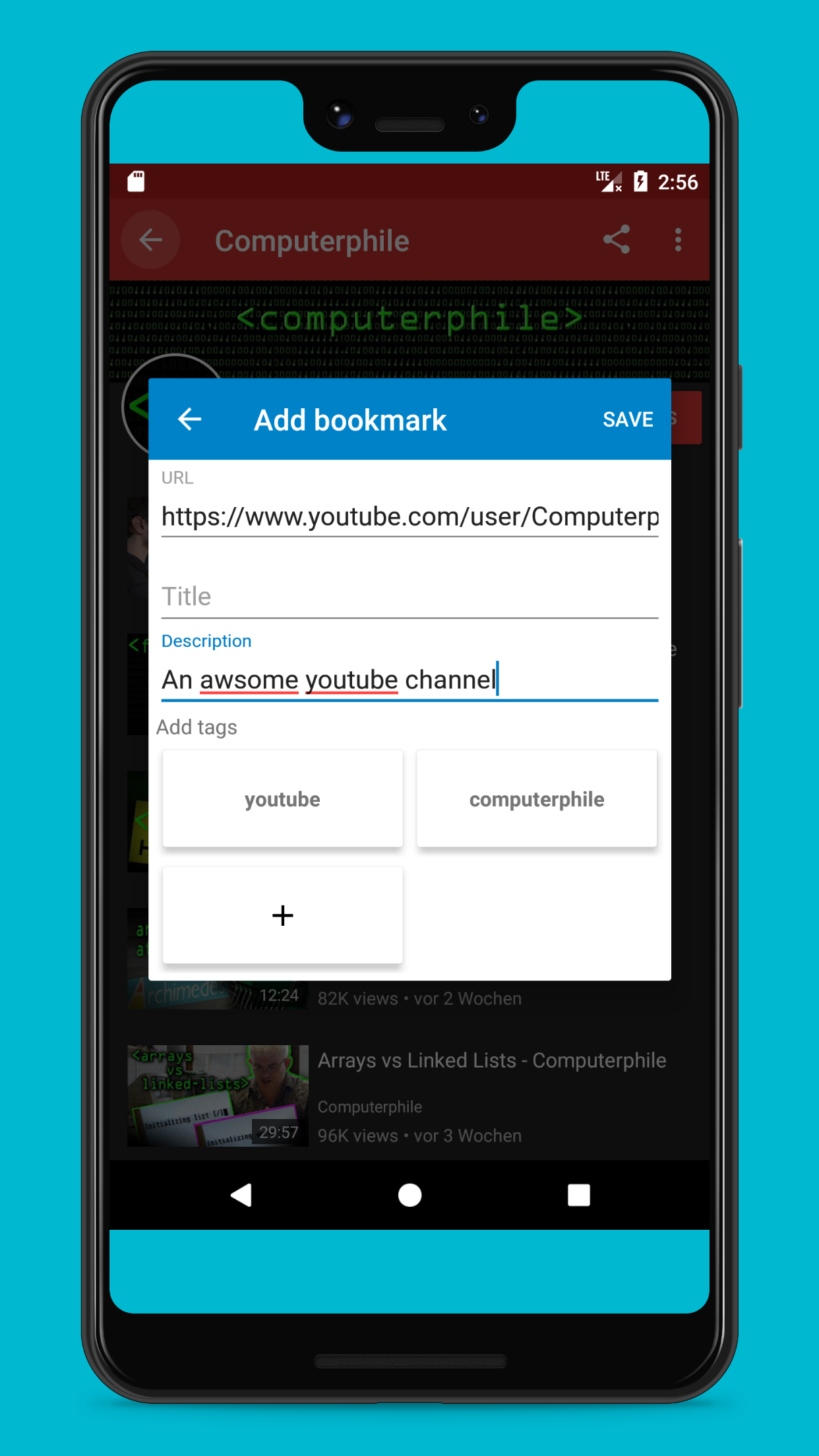
- Add Bookmarks: To add New bookmark / Tag Click on the + (plus sign)
- Add the intended url in URL field. Eg: https://www.youtube.com/user/Computerap
- Add some meaningfull Title or Description.
- Click on + (plus button) to add Tags to it. Eg. youtube . You can add multiple tags if you want.
- Hit the SAVE button to add the Bookmarks.
| Add Bookmarks screen |
|---|
 |
EDIT/Delete Bookmark/Tags
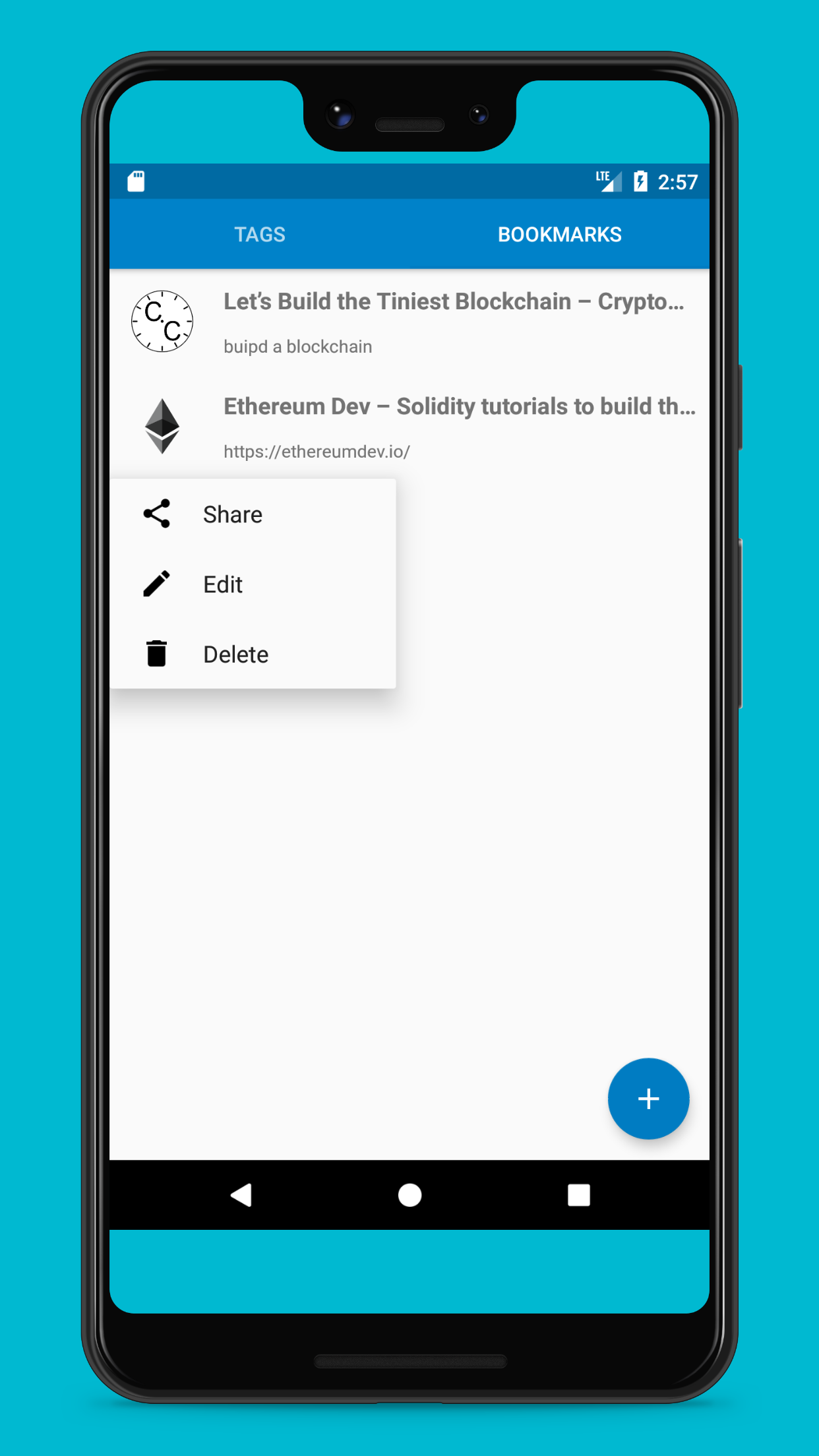
- Edit/Delete: To edit or delete Bookmarks please long press on the Bookmarks or Tags this will open EDIT/DELETE/SHARE window.
| Edit/Delete screen |
|---|
 |